
Android APK installation permissions can affect whether an application can be installed and which features it can access after installation. When installing apps from outside an established app store, users may see additional security messages or be asked to review certain settings.
Understanding these permissions is important, especially when dealing with third-party APK files associated with modified apps and games. HappyMod installation problems guide explains Android installation permissions, app access, common security warnings, and ways to protect your device.
What Are Android APK Installation Permissions?
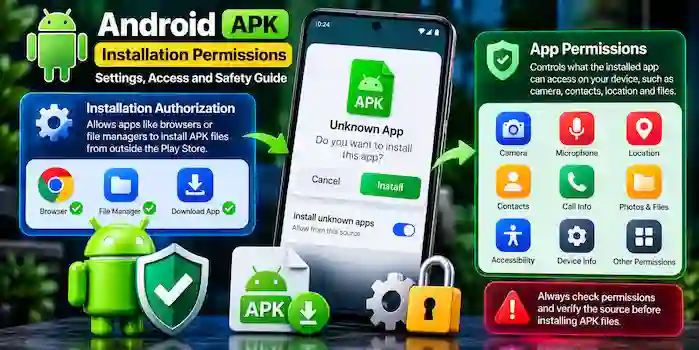
Android uses security controls to help protect devices from unwanted software. The term “APK installation permissions” can refer to two different things:
- Installation authorization: Whether an app, such as a web browser or file manager, is allowed to initiate installation of an APK from that source.
- App permissions: What an installed application can access, such as the camera, microphone, contacts, location, or files.
These controls serve different purposes. Allowing an app to initiate an installation does not automatically grant the installed application access to your personal information.
Why Does Android Ask for Permission to Install an APK?
When an APK comes from outside an established app store, Android may display a warning or require authorization for the app that opened the file.
This is a security measure intended to help users understand that an application is being installed from a particular source. The wording and available controls vary according to the Android version, device manufacturer, and system configuration.
Before proceeding, check where the file came from and whether you can verify its authenticity. If the source is unknown or the file appears suspicious, do not continue simply because Android provides an installation option.
How to Understand “Install Unknown Apps”
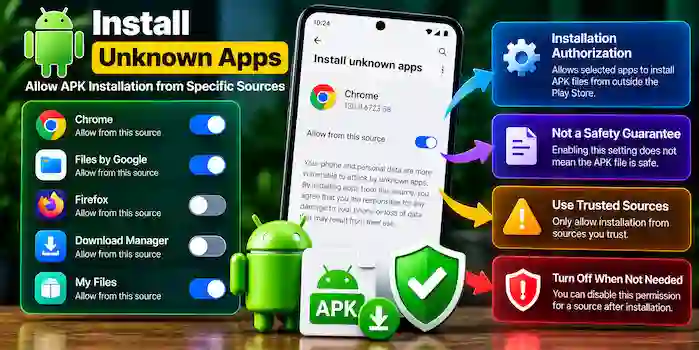
On supported Android versions, a setting commonly called Install unknown apps controls whether a particular source can initiate APK installations.
For example, Android may distinguish between a browser and a file manager. Authorization for one source does not necessarily authorize every other app to install packages.
Keep the following points in mind:
- This setting concerns installation authorization, not proof that an APK is safe.
- A trusted-looking website name does not guarantee that every file it provides is authentic.
- Security warnings should be reviewed rather than dismissed automatically.
- You can review the relevant setting and turn off installation authorization for a source when it is no longer needed.
The precise menu location and wording may differ between Android versions and phone manufacturers.
Android App Permissions Explained
After an application is installed, it may request permissions to access specific device features or information. The requested permissions should make sense for the app’s intended purpose.
Camera and Microphone
Camera access may be appropriate for a video-calling or photography app. Microphone access may be needed for voice calls or audio recording.
If a simple app requests these permissions without a clear reason, review the request carefully.
Location
Location permission can help navigation, weather, and mapping apps provide relevant information. However, an app that does not need location functionality may not require this access.
Review whether the app needs approximate or precise location and whether access is necessary while the app is in use.
Contacts and Call Information
Contacts access may support communication features, but it can also expose personal information about you and other people.
Do not grant contacts or call-related permissions unless the app has a clear reason to use them.
Photos, Videos and Files
Some apps need access to selected media or files to perform their functions. Where Android offers limited or selected access, consider using that option rather than granting broader access without a clear need.
Accessibility Access
Accessibility services are designed to help people interact with their devices and can support specific accessibility features. However, this access may allow extensive interaction with the screen or other app content.
Do not enable an accessibility service for an unfamiliar APK unless you understand exactly why it is required and trust the developer.
How to Review App Permissions on Android
Android provides settings for reviewing and managing the permissions granted to installed applications. Menu names may vary by phone and operating system version.
A general approach is:
- Open your phone’s Settings.
- Find Apps or Applications.
- Select the application you want to review.
- Open its Permissions section, if available.
- Review each permission and consider whether it is necessary for the app’s purpose.
- Remove permissions that are not needed, where Android allows you to do so.
You can also look for a privacy or permission manager in your device settings to review access across multiple applications.
Remember that denying a permission may affect a legitimate feature, but an app should not require unrelated access without a reasonable explanation.
Android Security Warnings During APK Installation
Android or your device’s security service may warn you about an unknown, potentially harmful, or suspicious application.
A warning does not always establish that a file is malicious, but it should never be ignored without investigation.
Before trusting the APK, consider these checks:
- Confirm the website’s domain and the source of the file.
- Verify the app name, package name, version, and publisher information.
- Review available authenticity information, including the digital signature when a trusted reference is available.
- Scan the file with a reputable security tool where appropriate.
- Avoid files that request unusual permissions or make unrealistic claims.
Security scans can help identify known threats, but no scan can guarantee that a file is completely safe. If you cannot establish the file’s authenticity, do not install it.
APK Permissions and HappyMod
HappyMod is associated with third-party catalogs of modified Android apps and games. Modified packages may behave differently from the original applications, and their permissions may not match what users expect.
When evaluating an APK associated with HappyMod or another third-party source, compare the requested access with the app’s stated purpose. Be particularly cautious with applications that request access to passwords, private messages, accessibility services, or other sensitive functions without a clear reason.
A community rating or download count does not establish that a modified APK is safe. For apps involving banking, payments, private communications, or sensitive personal information, prefer an official release from Google Play or the original developer whenever possible.
What to Do If an App Requests Too Many Permissions
If an app requests access that seems unrelated to its function, pause before granting it.
- Read the permission description carefully.
- Check whether the developer explains why the access is needed.
- Look for an official version with clearer publisher information.
- Deny unnecessary access when possible.
- If the app behaves suspiciously or cannot be trusted, stop using it and consider removing it.
Do not enter passwords, payment information, or verification codes into an application whose source you cannot verify.
Common Myths About APK Permissions
Allowing Installation Means the APK Is Safe
False. Installation authorization only allows a particular source to initiate an installation. It does not certify the APK as authentic or harmless.
A Popular APK Cannot Contain Malware
False. Popularity, comments, and download counts are not reliable proof of security.
Every App Needs All Requested Permissions
False. Permissions should be relevant to an app’s features. Unnecessary access can create avoidable privacy risks.
Turning Off One Permission Makes Every App Safe
False. Permission controls are only one part of Android security. App authenticity, software updates, developer reputation, and device protections also matter.
Frequently Asked Questions
What are Android APK installation permissions?
They are security controls that govern whether an app source can initiate an APK installation. Separately, installed apps may request permissions to access device features and personal information.
Does allowing unknown apps make my phone unsafe?
The setting itself is an installation control, but allowing an untrusted source to install software can increase risk. Only consider files whose source and authenticity you can verify, and review the relevant setting afterward.
Can I change an app’s permissions after installation?
In most supported Android versions, you can review and manage many app permissions through Settings. Available controls vary by permission, app, device, and Android version.
Why does an APK request accessibility access?
Some legitimate tools use accessibility services for specific functions, but this access can be powerful. Do not enable it for an unfamiliar app without a clear explanation and a trustworthy source.
Should I grant every permission an APK requests?
No. Review each request and grant only access that is appropriate for the app’s purpose. Avoid apps that demand unrelated sensitive permissions.
Conclusion
Android APK installation permissions help control where software can be installed from, while app permissions determine what an installed application can access. Understanding the difference helps users make better security and privacy decisions.
Before installing a third-party APK, verify its source, review its requested access, and take Android security warnings seriously. If a file or developer cannot be trusted, choosing an official app distribution channel is the more prudent option.