
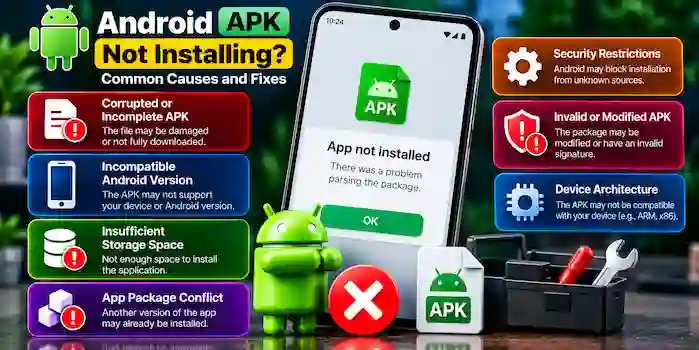
When an Android APK is not installing, the problem may be related to device compatibility, a damaged download, insufficient storage, package conflicts, or Android security restrictions. Sometimes, the file downloads successfully but Android displays an error when you try to install it.
This guide explains common reasons why an Android APK may not install and how to investigate the problem safely. Android APK installation permissions troubleshooting tips apply to APK files in general, including apps downloaded from third-party websites.
Why Is My Android APK Not Installing?
There is no single cause for every APK installation failure. The exact reason depends on your device, Android version, the APK file, and the error message displayed.
Common causes include:
- An incomplete or corrupted HappyMod APK download.
- An Android version that does not meet the app’s requirements.
- Insufficient storage space.
- A conflict with an existing version of the app.
- An incompatible app package or device architecture.
- Installation restrictions or security warnings.
- An APK that has been modified or packaged incorrectly.
Identifying the specific cause is more useful than repeatedly downloading files from different websites.
1. Check Whether the APK Download Is Complete
An incomplete download can prevent Android from installing an application. This may happen because of an interrupted connection, a download error, or a problem with the source website.
What to Check
- Confirm that the download finished successfully.
- Check the file’s name and extension.
- Compare its size with reliable information from the publisher, if available.
- Review any error message displayed during installation.
- If the file appears incomplete, obtain a fresh copy from a source you can verify.
Avoid downloading the same APK from several unfamiliar websites. A different source is not automatically more trustworthy, and an APK should not be installed if its authenticity cannot be established.
2. Check Android Version Compatibility
Some apps require a minimum Android version or specific system components. An APK designed for a newer operating system may not work on an older device.
Before installing an application, review its stated Android requirements and compare them with your device’s software version.
Compatibility can also depend on device architecture and other technical requirements. If the publisher does not provide reliable compatibility information, you may not be able to determine whether the file is suitable for your phone.
Tip: Prefer an app version officially supported by its developer instead of relying on an old or modified package to work on an unsupported device.
3. Fix the “App Not Installed” Error
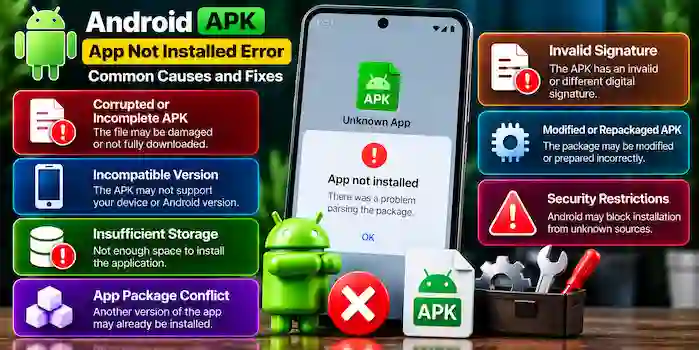
The message “App not installed” can appear for several reasons. Android may reject an APK because of a package conflict, incompatible requirements, a damaged file, or a signature problem.
Possible Causes
- The package is not compatible with the device.
- Another version of the same app is already installed.
- The APK has an invalid or different digital signature.
- The installation file is incomplete.
- The package was modified or repackaged incorrectly.
What You Can Do
Check the exact error message and verify the APK’s source. If another version is installed, consider whether removing it would affect important data before making any changes.
Do not uninstall an existing app just to install an unknown APK. Back up important information and prefer the original developer’s supported release when possible.
4. Resolve an “App Not Installed as Package Appears Invalid” or Parsing Error
Android may display a message such as “There was a problem parsing the package” when it cannot interpret an APK correctly.
Potential reasons include:
- The file is corrupted or incomplete.
- The package uses features unsupported by the device.
- The APK was prepared incorrectly.
- The file is not a valid Android installation package.
Start by checking the download and verifying the source. Confirm that the app supports your device and Android version.
If the same error continues, avoid trying to repair an unknown file with untrusted tools. Look for a supported version from the original developer instead.
5. Check Available Storage Space
An Android device needs enough available storage to download and install applications. A phone with very little free space may fail during installation or experience other problems.
How to Check Storage
- Open your device’s Settings.
- Find the Storage section.
- Review the available space.
- Remove unnecessary files or unused apps if needed.
- Try the installation again only after confirming that the APK is trustworthy.
The exact menu names vary between Android versions and manufacturers. Avoid deleting personal files without a backup.
6. Understand Android Installation Restrictions
Android uses security controls to help protect devices from untrusted software. Depending on the Android version and device settings, an installation may be blocked or accompanied by a warning.
Before proceeding, verify the source and authenticity of the APK. A warning may indicate that the file is unfamiliar or potentially harmful, so it should not be dismissed automatically.
If the app’s origin is uncertain, choose an official distribution channel. Do not disable essential security protections just to force an installation.
For more details about installation authorization and app access, see our guide to Android APK installation permissions.
7. Check for Package Signature Conflicts
Android uses digital signatures to help identify app packages and support trusted updates. If an APK has a different signature from the version already installed, Android may reject it as an update.
This can happen when a third-party package has been modified or when two files come from different publishers.
How to Investigate
- Verify the app’s publisher and package name.
- Check whether the file is an official release.
- Avoid mixing modified versions with the original app.
- Protect any important information stored in the existing installation.
Do not remove an existing app or its data without considering the consequences. For an app you rely on, the original developer’s release is generally the more dependable option.
8. Check Device Architecture and APK Type
Some apps are distributed in different builds for different processor architectures or device configurations. An APK intended for a different environment may fail to install or run correctly.
Some developers also distribute app bundles or split APK packages rather than one standalone APK. A single file taken from a bundle may not contain everything needed for installation.
Check the publisher’s documentation to determine which package format and device configuration are supported. Avoid using unfamiliar installation tools from unverified sources.
9. Why Does an APK Install but Not Open?
An installation can complete successfully while the app still fails to launch. This is a different problem from an APK that cannot install.
Possible causes include:
- The app is incompatible with the device.
- Required system components are missing.
- The app contains a software bug.
- The APK has been modified or damaged.
- The app relies on online services that are no longer available.
Restarting the device may help with temporary issues. You can also check for system updates and review the app’s requirements.
If the problem continues, look for a supported release or contact the original developer. Avoid providing sensitive account information to an unknown app while investigating.
10. Is It Safe to Download Another APK?
Downloading a replacement APK may appear to be a simple solution, but changing the source does not guarantee that the new file is safe.
Before downloading another copy:
- Verify the website’s domain and publisher details.
- Review the app’s version and compatibility requirements.
- Check available digital signature or checksum information against a trusted reference.
- Use reputable security scanning tools where appropriate.
- Avoid files that request unnecessary permissions or make unrealistic claims.
Security scans can help identify known threats, but they cannot guarantee that an APK is harmless.
For apps that handle payments, passwords, private messages, or sensitive personal information, use Google Play or the original developer’s official distribution channel whenever possible.
Android APK Not Installing on Samsung, Xiaomi, and Other Phones
Installation behavior can vary between manufacturers and software versions.
Samsung
Samsung devices may display security messages or compatibility errors depending on the APK and the phone’s software. Review the exact warning and verify the file before deciding what to do next.
Xiaomi and Redmi
The installation process and system messages may vary by model and Android version. Check compatibility, available storage, and the exact error displayed.
Realme and OnePlus
System security controls and software requirements can affect installation. Use the error message to narrow down the issue rather than assuming every failed installation has the same cause.
The exact settings and troubleshooting steps may differ between models. Follow your device manufacturer’s guidance for system-specific problems.
Frequently Asked Questions
Why is my Android APK not installing?
Common causes include an incomplete download, incompatible Android version, insufficient storage, a package conflict, or a security restriction. The exact error message helps identify the likely cause.
How do I fix the “App not installed” error?
Check the APK’s source, compatibility, file integrity, and any existing installation of the same app. Avoid installing unknown files or removing important apps without backing up their data.
Why does my APK show a parsing error?
Android may be unable to read the package because it is damaged, incompatible, or incorrectly prepared. Verify the file and seek a supported version from the original developer.
Can low storage prevent APK installation?
Yes. Insufficient free space can interfere with installation. Review your device’s storage and make room if needed, while preserving important personal files.
Should I ignore Android security warnings?
No. Review the warning and verify the file’s origin. If the APK is flagged as potentially harmful or its authenticity cannot be confirmed, do not install it.
Can I install Android APK files on an iPhone?
No. APK files are designed for Android and do not install directly on iOS. iPhone users should look for compatible apps through Apple’s official distribution options.
Conclusion
When an Android APK is not installing, begin by checking the error message, file integrity, device compatibility, available storage, and possible package conflicts. These checks can help distinguish ordinary technical issues from files that may be unsafe or unsuitable.
Avoid forcing an installation or bypassing security warnings without understanding the cause. If the source cannot be verified, choose an official app distribution channel instead.